
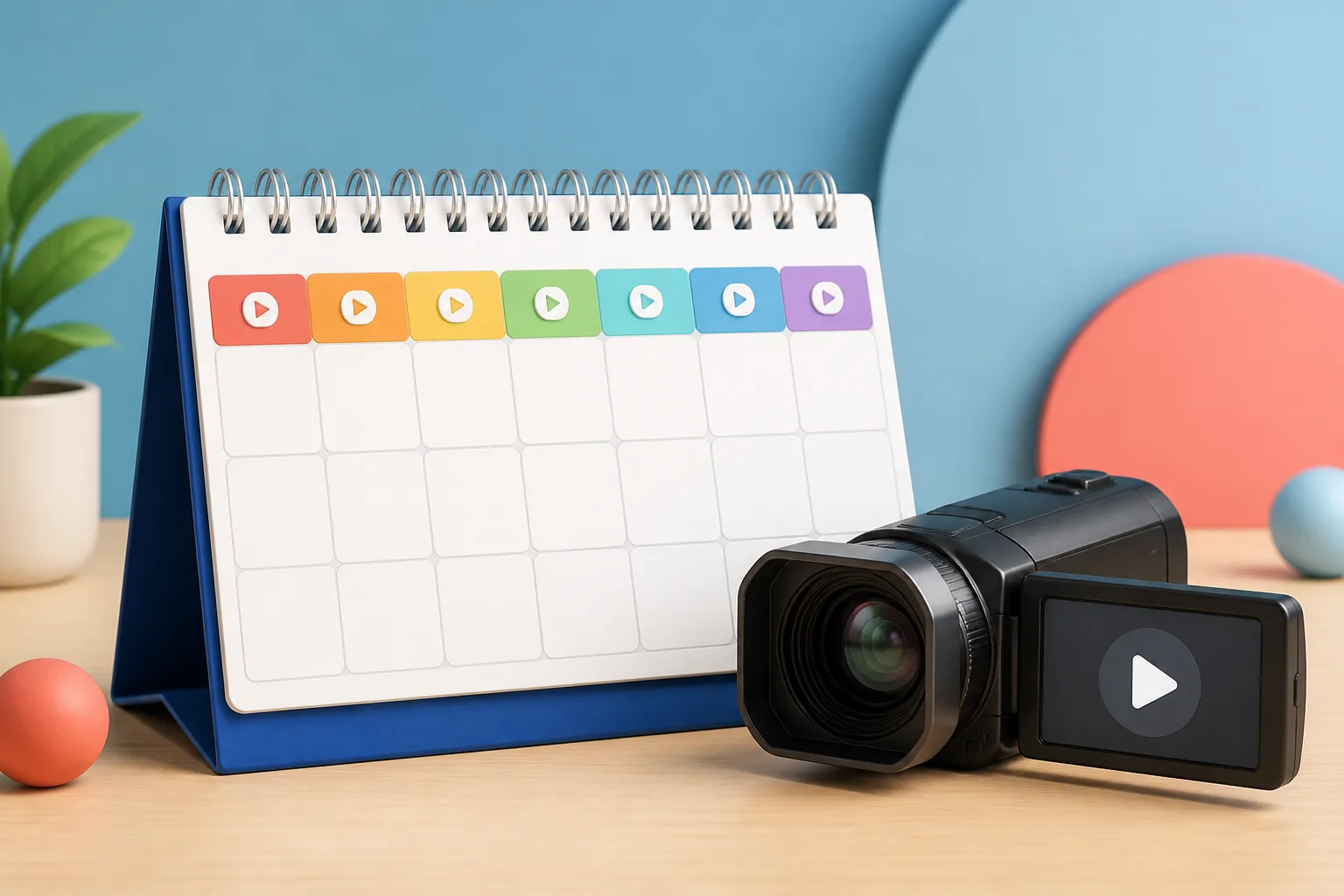
Short answer: A YouTube content calendar is a structured schedule for video topics, formats, filming dates, and publish dates. The YouTube content calendar template can map production work to a realistic publishing cadence, with options such as weekly, every two weeks, or twice a week. Reviewing it weekly helps you update statuses, move delayed work, and check the next upload.
- A YouTube content calendar maps topics, formats, filming dates, and publish dates into a structured schedule.
- A template can include a publish date, working title, content pillar, format, target keyword, production statuses, thumbnail, scheduling status, and notes.
- Suggested upload frequencies include weekly, every two weeks, or twice a week.
- The recommended buffer is one or two monthly slots for evergreen or reactive videos.
- A weekly review can update statuses, shift delayed work, and check the next upload.
What Is a YouTube Content Calendar Template for Consistent Weekly Uploads?
A YouTube content calendar maps upcoming video topics, formats, filming dates, and publish dates into a structured schedule. The calendar gives you an editorial roadmap for releases, rather than leaving each upload to last-minute planning. Planning can support consistency and help keep viewers engaged.
Use the YouTube content calendar to see what is coming and when production needs to happen. The calendar can support consistent posting, which its source says helps retain subscribers and signals that a channel is active and relevant. Treat the schedule as a working plan: the template should make upcoming commitments visible while leaving room to adjust them.
Check YouTube growth and strategy reviews
Which Fields Should a YouTube Content Calendar Template Include?
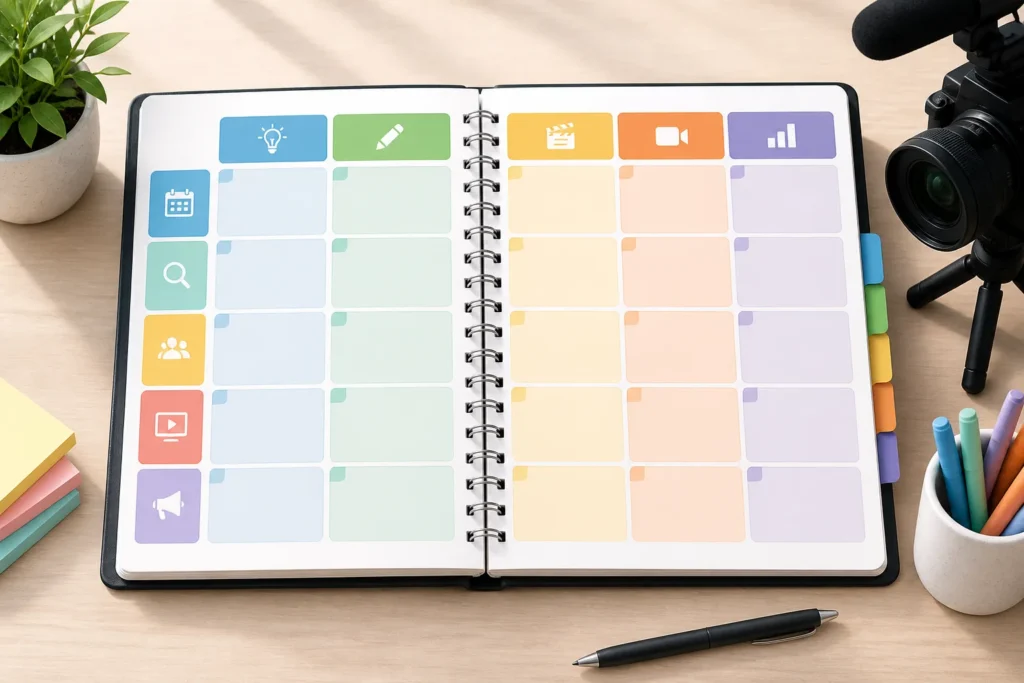
A useful YouTube content calendar template tracks the video idea, its planned release, and the work needed to get it ready. The YouTube content calendar template can include publish date, working title, content pillar, format, target keyword, script status, film date, edit status, thumbnail, scheduling status, and notes.
Connect topic planning to keyword or search-intent research and a content pillar so each idea has a clear place in the plan. The calendar should also make production progress easy to scan: track whether a video is planned, being filmed, edited, or uploaded. ClickUp’s template offers eight progress statuses, including Concept, In Development, Published, and Ready.
Add scripting, filming, editing, and thumbnail creation as production tasks. Optional fields can capture a post-launch metric, sponsor status, lead time, and asset deadline when sponsorships are relevant.
How Do You Choose a Weekly Upload Frequency and Content Mix?
Choose an upload frequency that fits your goals and the time you can realistically spend creating videos. Options include weekly, every two weeks, or twice a week. The YouTube content calendar should reflect a cadence you can sustain, not a schedule borrowed from another creator.
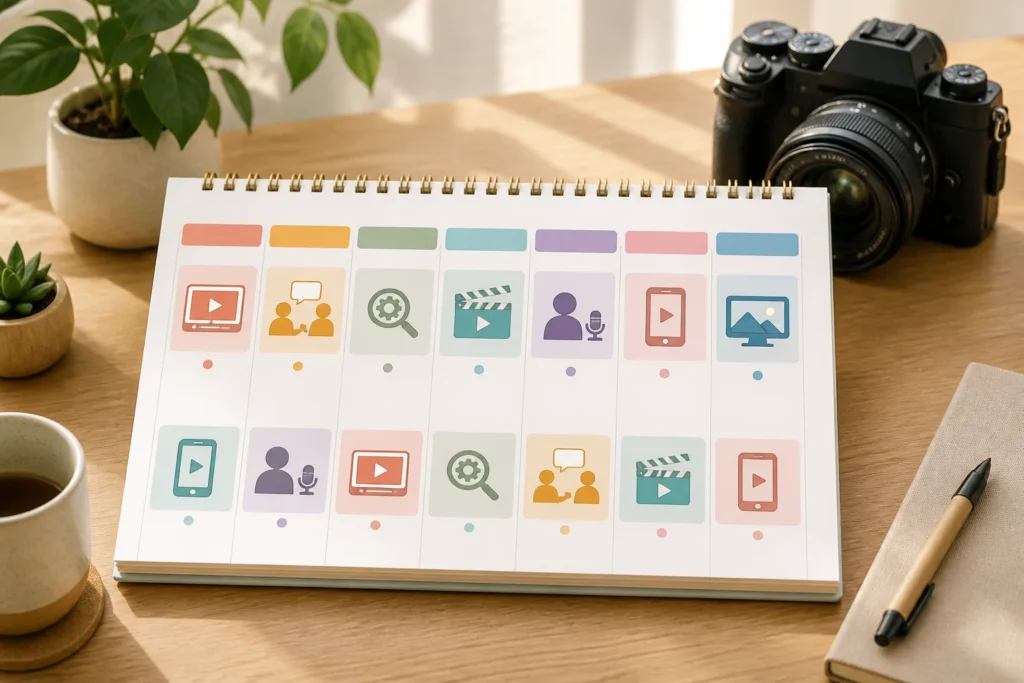
Set a baseline that remains manageable during a normal month and a difficult one. If editing is the bottleneck, simplify the video format before increasing upload frequency. Use the template to plan a varied mix: possible formats include tutorials, product reviews, interviews, educational resources, and Shorts.
Batch related work by setting aside time to brainstorm ideas, create visuals, and write captions in bulk. A YouTube content calendar template can group those tasks while keeping each planned video tied to its intended release cadence.
Hand YouTube growth and strategy to a pro
How Do You Plan to Days of YouTube Videos and Production Milestones?
Start with an idea backlog for the next month or quarter, then assign each idea a content pillar, format, and relevant target keyword. The calendar can turn that backlog into a publishing schedule by giving each video a planned date and production milestones.
Work backward from every publish date to set deadlines for the script, filming, editing, thumbnail, and final review. Assign upload dates and times as you map out the schedule. In the YouTube content calendar, use recurring reminders for filming, editing, and uploading so the next task isn’t easy to overlook.
Plan dates monthly, then hold a weekly production check-in to find slipping work and decide what needs to change. A template is most useful when it shows both the release commitment and the next action needed to meet it.
What Free YouTube Content Calendar Templates and Tools Can You Use?
A simple document or spreadsheet can serve as a YouTube content calendar. Google Sheets and Notion are identified as common free starting points, while Microsoft Excel and Google Sheets can be used to create a planner. The YouTube content calendar template can use one sheet per month linked from a master index or a rolling 90-day view.
The table below compares three tool options using the formats or features specified in the ledger. Planable offers a free trial that includes posts; that trial is not the same as a free template. Its calendar supports calendar, feed, grid, and mobile views.
| Tool | Documented format or views | Access detail |
|---|---|---|
| Google Sheets | Monthly sheets linked to a master index, or a rolling 90-day sheet | Listed as a common free starting point |
| Planable | Calendar, feed, grid, and mobile views | Free trial includes posts |
| ClickUp | Board, List, Timeline, Gantt, and Calendar views | Template views are specified; free access details aren’t provided |
Choose the YouTube content Calendar Template for Consistent Weekly Uploads format that makes dates and task progress easiest for you to review.
Browse YouTube growth and strategy services
What Can Disrupt Weekly Uploads, and How Do You Build in a Buffer?
Build flexibility into the publishing plan so one delay doesn’t automatically leave a release uncovered. The calendar can reserve one or two buffer slots each month for evergreen or reactive videos. Keeping two to four videos ahead can also help protect uploads during illness, travel, or a creative slump.
Leave room for unforeseen circumstances and timely opportunities; a calendar should be flexible enough to accommodate both. The YouTube content calendar can mark buffer slots separately from committed releases, making room for changes that can’t be predicted in advance.
Use reminders to track deadlines and reduce the risk of missing a publishing date. Batching multiple videos in one session can leave content ready to post and reduce stress when schedules change. Keep the template current when a deadline moves, so the backup plan reflects what is actually ready.
How Should You Review Your Calendar and Use YouTube Analytics Each Week?
Review the calendar weekly to update statuses, move delayed work, and check the next upload; one source suggests a fifteen-minute review. The YouTube content calendar template can keep that check focused by putting upcoming work and recent video results in one place.
Track views, watch time, likes, comments, and subscriber growth. A short review of recent uploads can also check click-through rate, average view duration, retention shape, and early view velocity; the ledger provides no benchmarks for these measures. YouTube Analytics can help identify keywords driving traffic to videos, and performance insights can inform content strategy.
For a Channel Growth Desk workflow, log performance notes beside each video rather than in a separate analytics document. Use the calendar to retain those notes for monthly reviews, when you can reconsider weaker topics and plan follow-ups for stronger ones.
Compare YouTube growth and strategy experts
| Source | Publish date | Video title | Format or type | Keyword | Status |
|---|---|---|---|---|---|
| brandghost.ai | publish date | working title | format | target keyword | script status |
| coefficient.io | planned upload dates | titles | video types | keywords | — |
| sponsorradar.com | publish date | working video title | format | — | status |
| Tool | Documented format or views | Access detail |
|---|---|---|
| Google Sheets | Monthly sheets linked to a master index, or a rolling 90-day sheet | Listed as a common free starting point |
| Planable | Calendar, feed, grid, and mobile views | Free trial includes posts |
| ClickUp | Board, List, Timeline, Gantt, and Calendar views | Free access details aren’t provided |
What the data says
- Choose a cadence that fits your goals and available creation time.
- Work backward from publish dates to set production deadlines.
- Keep two to four videos ahead to help protect against disruptions.
- Use weekly reviews to update statuses and move delayed work.
- A YouTube content calendar keeps your weekly uploads on track when you plan two weeks ahead.
Reader questions
How do I make a content schedule on YouTube?
A YouTube content schedule organizes video ideas, filming dates, and upload dates; a calendar can track those plans and production status.
What is the best time to upload on YouTube in India?
The ledger doesn’t provide an India-specific best upload time. It recommends assigning upload dates and times, then reviewing video performance and adjusting your strategy.
How often should you upload YouTube videos?
Choose a cadence that fits your goals and available creation time; examples include weekly, every two weeks, or twice a week.
