
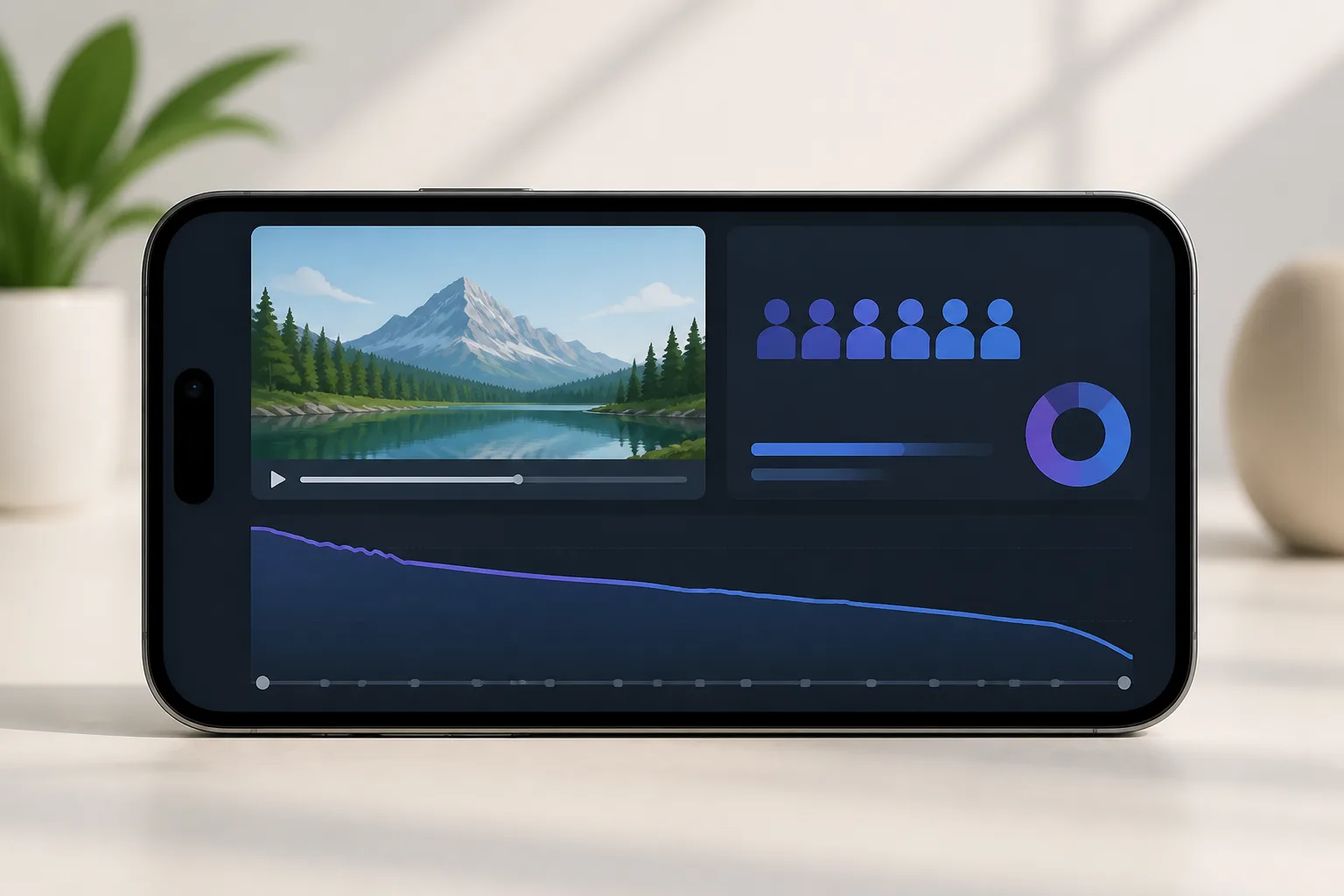
Short answer: YouTube Studio’s video-level Analytics report shows audience retention across a video’s timeline, and you can open it through Content, a selected video, Analytics, then Overview or Engagement. To learn how to check audience retention in YouTube Studio, compare the curve with average view duration and use length-matched comparisons; new retention data typically takes 1–2 days to appear.
- The audience-retention report is available at the individual-video level of YouTube Analytics.
- The intro metric is the percentage of the audience still watching after the first seconds.
- New audience-retention data typically takes 1–2 days to process.
- YouTube highlights key moments only when detected, for videos at least seconds long with at least views.
What does YouTube’s audience retention metric measure, and how does it differ from average view duration?
Audience retention shows the percentage of a video viewers watch on average, displayed across the video timeline. Average view duration gives one average viewing time, while the retention curve shows where viewers leave.
Checking retention in YouTube Studio starts with distinguishing the curve from the averages. Average percentage viewed expresses average view duration as a share of the video’s length. Absolute retention shows the share of viewers still watching at each second.
If you’re learning how to read the retention graph, use the curve to locate changes in viewing and average view duration to see one overall time figure. The phrase “check audience retention” describes a report-reading task; the measures themselves answer different questions about viewing.

Find YouTube video editors on Fiverr
How to Check Audience Retention on YouTube Studio and Read the Graph?
To open a specific video’s audience-retention report, go to Content, select the video, choose Analytics, then open Overview or Engagement. YouTube makes the report available at the individual-video level of YouTube Analytics.
For reading the retention graph, begin by selecting the video whose report you want to inspect. The Overview and Engagement tabs both provide a location for the report.
- Open Content in YouTube Studio.
- Select a video, then choose Analytics.
- Open Overview or Engagement to view the report.
Checking audience retention means using the video-level analytics path, not looking for a channel-wide retention report. The available steps don’t specify a date-range selection, so no date-range instruction is included here.
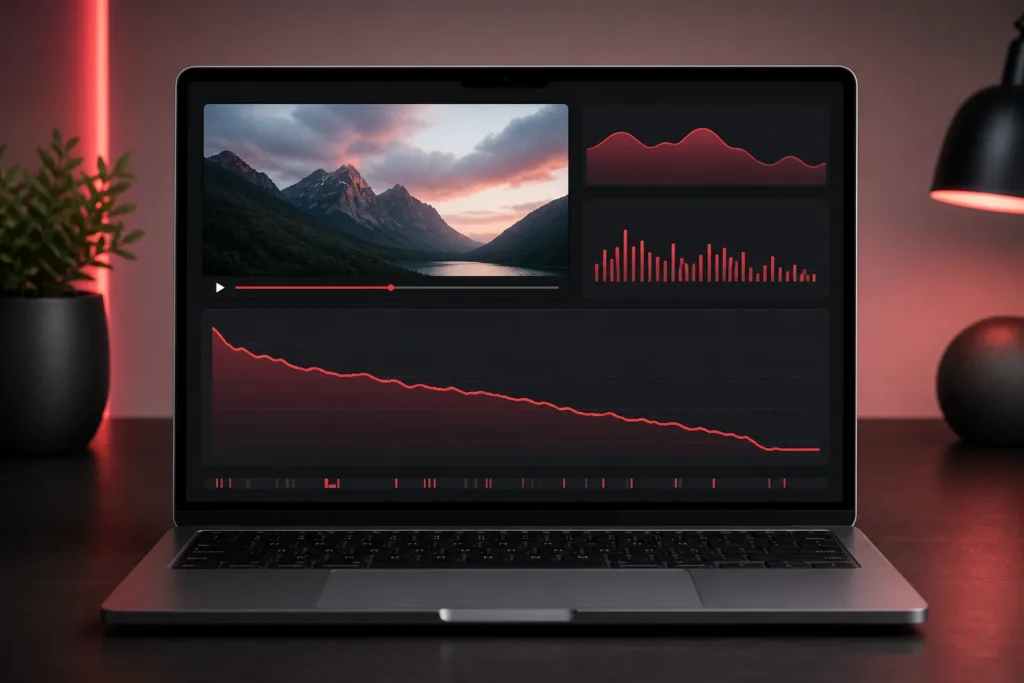
Can you view audience retention in the YouTube Studio mobile app, and how soon after publishing does the data appear?
The documented mobile path is for the YouTube Studio app on Android: open Content, select a video, tap Analytics, then choose Overview or Engagement. New audience-retention data typically takes 1–2 days to process or appear.
How to Check audience retention on YouTube Studio and Read the Graph on Android is a video-level process. Follow these steps:
- Open Content in the app.
- Select a video and tap Analytics.
- Choose Overview or Engagement.
If you’re checking retention soon after publishing, allow for the stated processing delay before concluding that data is unavailable. The available claims document Android navigation, but don’t establish the equivalent path on other mobile platforms. This analysis on those other platforms is therefore not specified here.
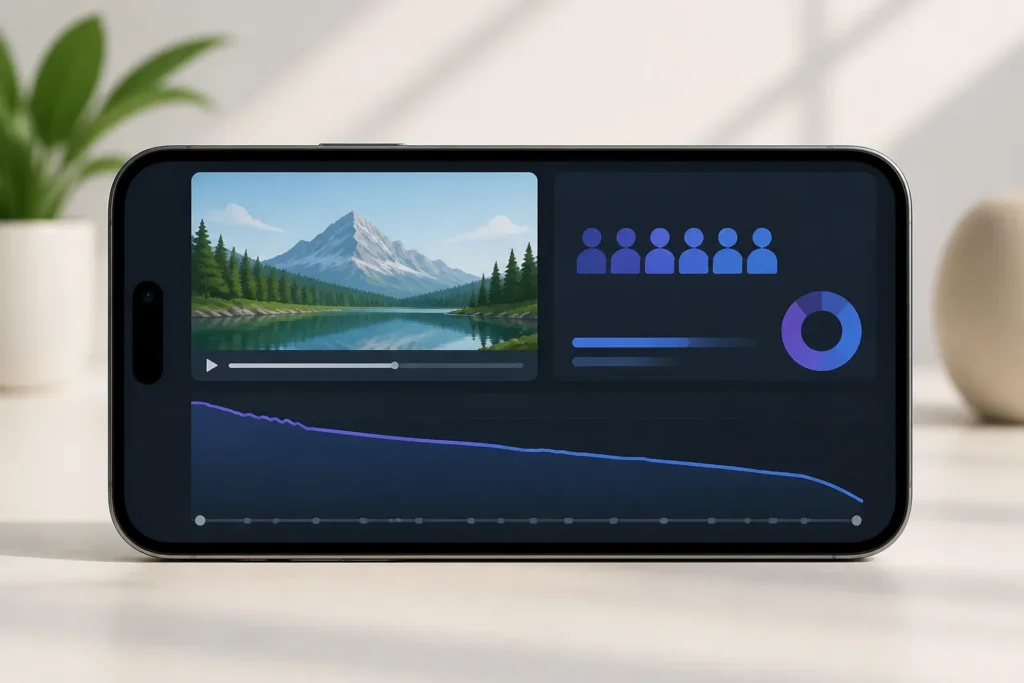
How do you read the retention graph’s intro, dips, spikes, and flat sections?
The intro metric is the percentage of the audience still watching after the first seconds. On the audience-retention graph, dips indicate viewers leaving, while a flat line indicates consistent viewing.
Checking retention in YouTube Studio includes looking at where the line changes along the video timeline. A spike can mark a moment viewers may have replayed or skipped forward to. Read it as a clue about viewer behavior, not proof of why that moment changed.
Absolute retention shows the share still watching at each second. Relative retention compares a video with videos of similar length, including a creator’s latest videos of similar length. Reading the retention graph also means knowing which comparison you’re looking at: one describes the audience remaining over time, and the other provides a length-matched comparison. The available claims don’t define a separate “top moments” label. Use checking audience retention to examine the graph, rather than assuming an undefined label.

What audience retention percentage is considered good, and how should you compare videos of different lengths or formats?
There’s no single good audience-retention percentage for every video: video length affects retention, so compare videos of similar length on your channel. The ranges in the table below are guidance, not universal benchmarks, because length influences the figures.
This analysis also means choosing a fair comparison. YouTube’s report lets creators compare typical retention across their latest videos of similar length. Format and traffic source can also affect what makes a useful comparison, so use a comparable library as a baseline.
When considering checking retention in YouTube Studio, don’t treat one percentage as a pass-or-fail score across unlike videos. Comparing retention across formats can help identify which formats perform best. The phrase “check audience retention” points to a comparison process, not a universal target: use the length ranges as context and judge results against relevant videos.
Why might an audience retention graph be missing or incomplete, and what factors can affect its data?
A missing key-moment label doesn’t necessarily mean the audience-retention graph is missing: YouTube may show no labels when it doesn’t detect a key moment. YouTube highlights key moments only when detected, and the video must be at least seconds long and have at least views.
Reading the retention graph requires separating the graph from labels that may appear on it. Those eligibility conditions describe when YouTube highlights key moments; they don’t establish that every missing or incomplete retention graph has the same explanation.
If you’re using checking audience retention to troubleshoot a report, the supported conclusion is limited: the available claims explain why key-moment labels may be absent, but don’t provide other causes for a missing or incomplete graph. This analysis can clarify what the report contains, but the cause of other display issues is unknown from the available information.
How can you use retention drops and spikes to decide what to change in future videos?
Reviewing dips and spikes can help you identify unengaging moments and compelling sections to adapt in future videos. A spike is a clue to investigate, because it may reflect either a valuable replay or a confusing explanation.
Checking retention in YouTube Studio can help you locate moments to review, but the graph alone doesn’t explain why viewers acted that way. A drop-off around seconds may mean the intro needs adjusting, while a mid-video decline may call for reworking the structure or adding a visual change.
When applying reading the retention graph to future uploads, change one major variable at a time and compare with a video of similar length, format, and traffic source. You can also note recurring rewatch spikes across your last five videos and plan more of that type of moment in a future script. Checking audience retention is most useful when it leads to a specific change you can review in a comparable upload.
See YouTube video editor reviews
| Video length | vidIQ target range | Humble & Brag healthy range |
|---|---|---|
| under minutes | 50–70% | 50 to per cent |
| 5–15 minutes | 40–55% | 40 to per cent |
| 15–30 minutes | 30–45% | 30 to per cent |
| longer than minutes | 25–35% | 25 to per cent |
What the data says
- Use the retention curve to locate where viewers leave, and average view duration for one average viewing-time figure.
- Compare videos of similar length rather than treating one retention percentage as universal.
- Treat spikes as clues to investigate because they can reflect a replay or a confusing explanation.
- Change one major variable at a time and compare the next upload with a similar video.
Reader questions
What does YouTube audience retention measure?
Audience retention shows the percentage of a video viewers watch on average across its timeline. The retention curve shows where viewers drop off, while average view duration gives one average viewing time.
Where can I find a video’s audience-retention report?
You can find a video’s audience-retention report in YouTube Analytics by opening Content, selecting a video, choosing Analytics, then opening Overview or Engagement. The report is available at the individual-video level.
How soon does audience-retention data appear?
New audience-retention data typically takes 1–2 days to process or appear. The documented mobile navigation path is for the YouTube Studio app on Android; the available claims don’t establish the equivalent path on other mobile platforms.
What is a good audience-retention percentage?
There’s no single good retention percentage for every video, because video length affects retention. Compare a video with others of similar length, and treat the published ranges as guidance rather than universal benchmarks.
